Layouts, scenes, and publishing
Design
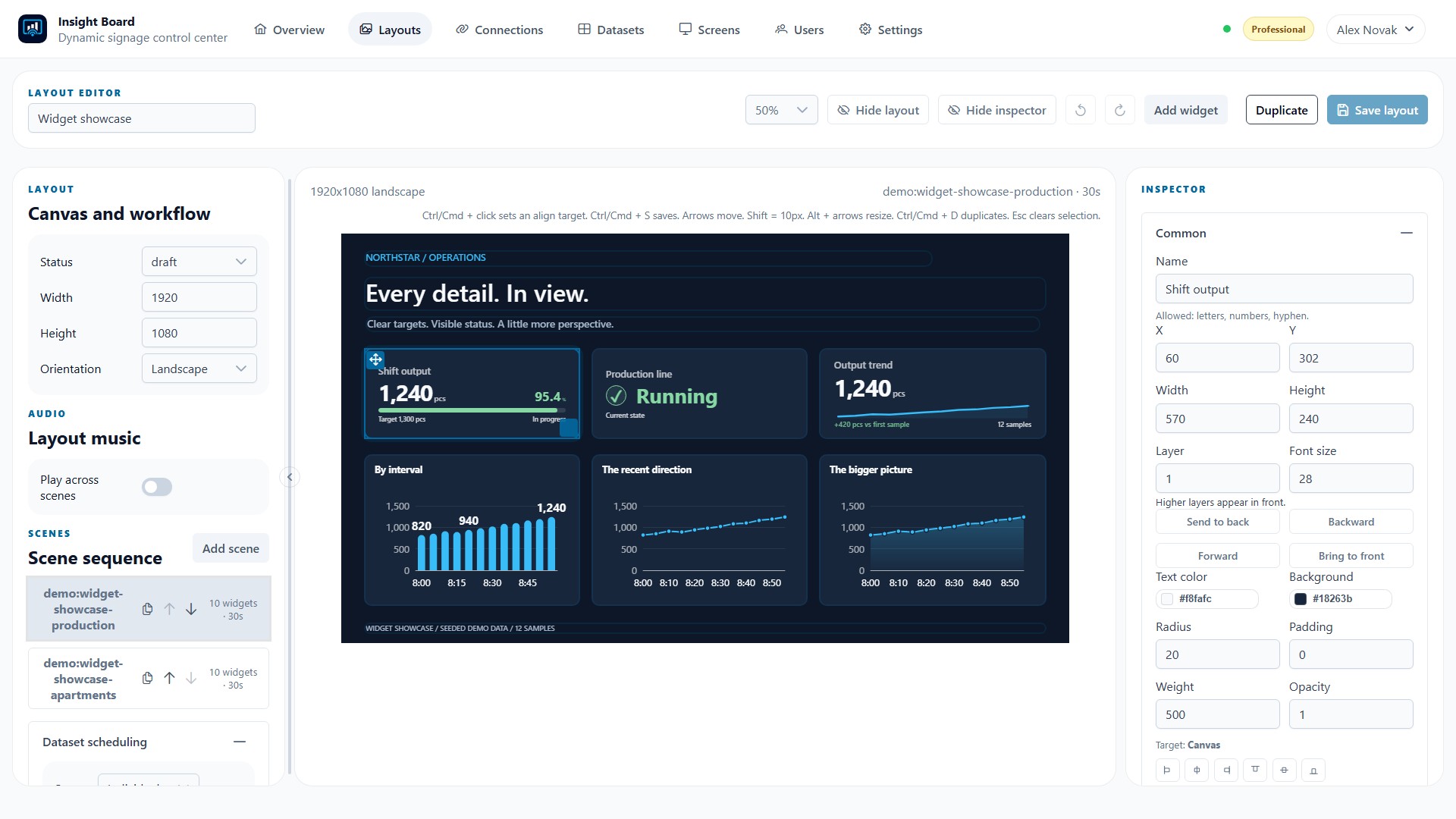
Section titled “Design”Open Layouts, create a layout, and choose resolution/orientation. Each scene has duration, transition, background, and widgets. Position widgets on the canvas and use the inspector for precise size, style, and bindings.
Hide the layout/inspector panels for a larger canvas. Mobile editing uses panel tabs. Use separate scenes for different purposes, and dataset rotation for records sharing the same presentation. Scene timing and record rotation are separate settings.
Dashboard widgets
Section titled “Dashboard widgets”| Widget | Configure | Behaviour |
|---|---|---|
| Progress | Numeric value field, target field or constant target, unit and percentage thresholds | Shows actual, target and completion. The track stops at 100%; the number can exceed it. Missing data or a non-positive target shows No data. |
| Status | Value field and rules containing an exact value, display label and tone | Matches text, numbers and booleans as strings (running, 0, true). Labels and icons accompany colour. Unmatched values show Unknown. |
| Trend | Numeric value field, optional timestamp field, unit and sample count | Shows the latest value, sparkline and absolute change versus the first visible sample. Default: latest 60 valid samples. |
| Chart | Bar, Line or Area; numeric value field, label field and item limit | Bar compares categories, Line emphasises direction, and Area adds a quiet shaded region. |
Trend uses history supplied by your dataset; it does not record readings automatically. A timestamp field sorts samples chronologically; without one, dataset order is used. One sample shows a point without a change comparison. Empty or invalid readings do not become zero.
Use Dataset scheduling → Individual → Condition based to filter a scene’s datasets, for example line equals Line A. The same filtered records feed progress, status, trends and charts. Keep metric names short, select contrasting panel/text colours, and test at the actual screen aspect ratio.
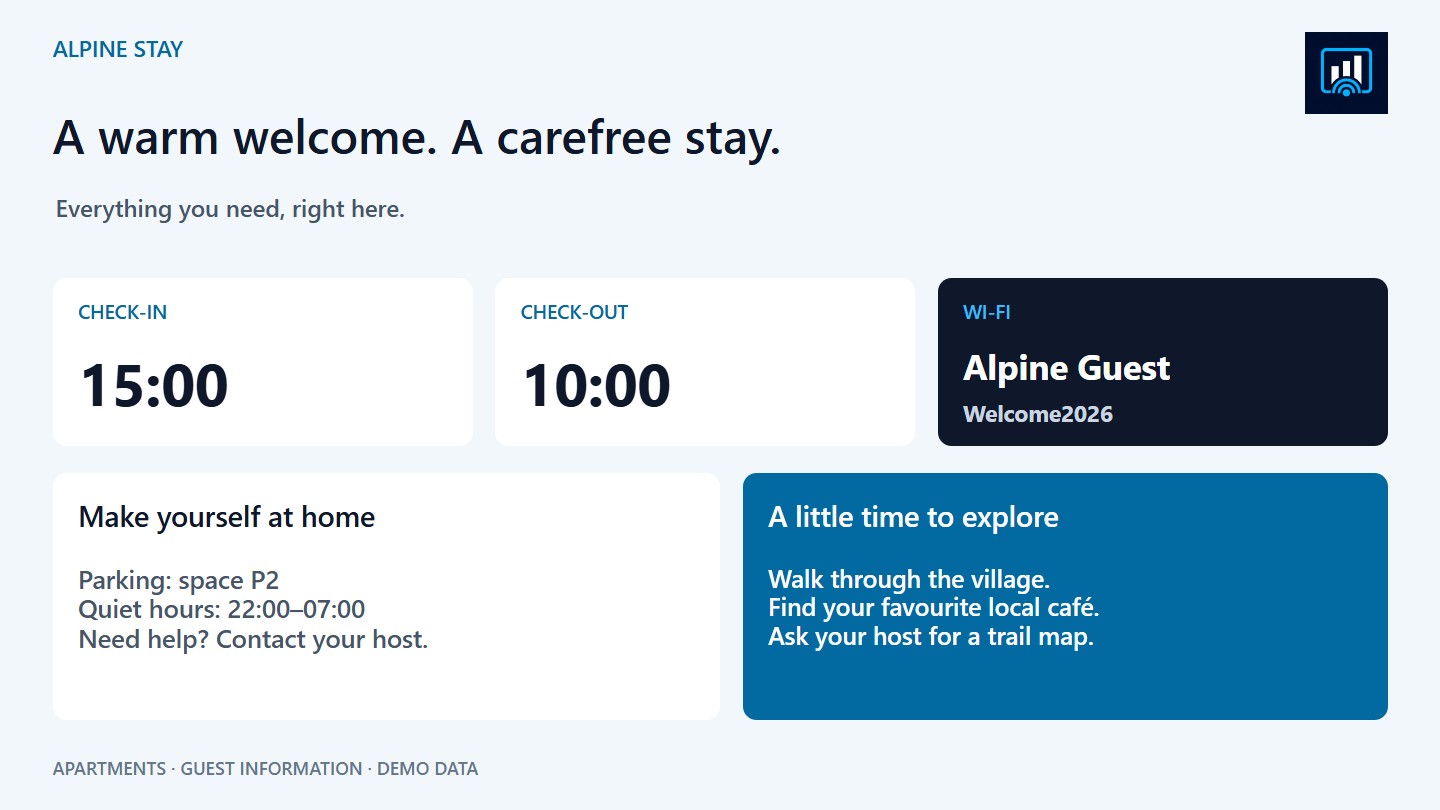
The demo includes a separate Widget showcase draft with dark production and light Alpine Stay scenes. Its current values and history are clearly marked seeded examples. It is not assigned to screens automatically. These widgets are also available through the MCP catalog.
Save and publish
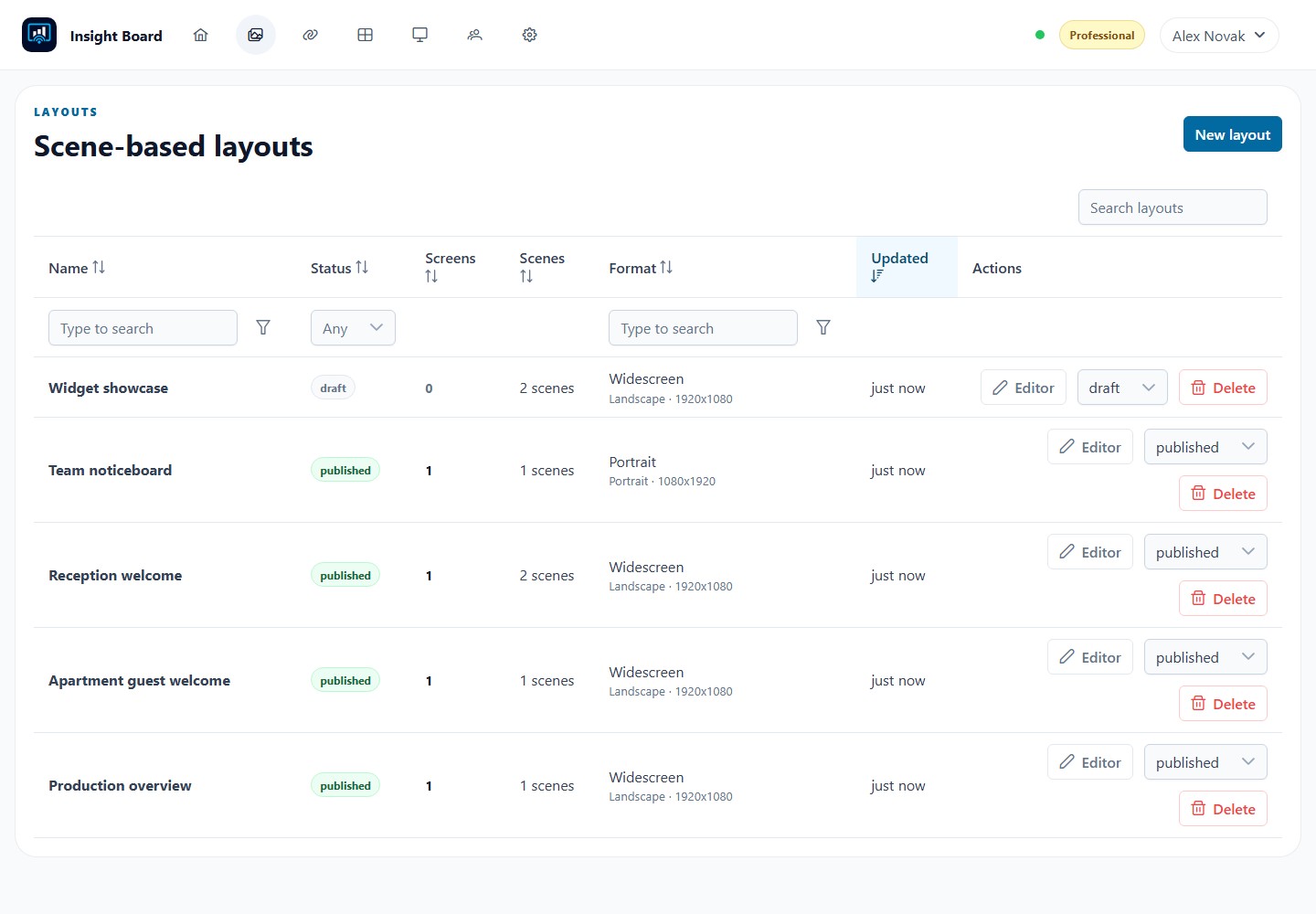
Section titled “Save and publish”Choose Save layout. Draft/review states are for preparation; only published layouts play on assigned screens. Saved edits to an already published layout can appear immediately. Prepare major changes on a copy or deliberately return to draft.
Revision checks prevent overwriting another user’s changes. On conflict, copy edits you need, reload the current layout, and reconcile. Do not repeatedly save a stale copy.
Verify
Section titled “Verify”Assign the published layout under Screens. Check real aspect ratio, viewing-distance readability, contrast, long text, and missing data. Fit preserves the full layout, cover may crop, and stretch may distort.
Apartments and guest information
Section titled “Apartments and guest information”A display can welcome apartment guests as well as show operational data. Create a manual dataset for check-in/out times, guest Wi-Fi, and house information, then bind the text widgets to its fields. Keep text large enough to read from across a reception area. Use only guest information intended for that audience; do not put booking details or personal guest data on a public screen.
The Alpine Stay demo is a fictional example. Change the demo Wi-Fi details and house rules before using a copied layout.